HearAbout help center
Set up HearAbout in a few minutes. Need a hand? Email support@centubo.com.
1. Install the app
- Open HearAbout on the Shopify App Store and click Install.
- Approve the permissions. HearAbout opens inside your Shopify admin.
2. Set up your survey
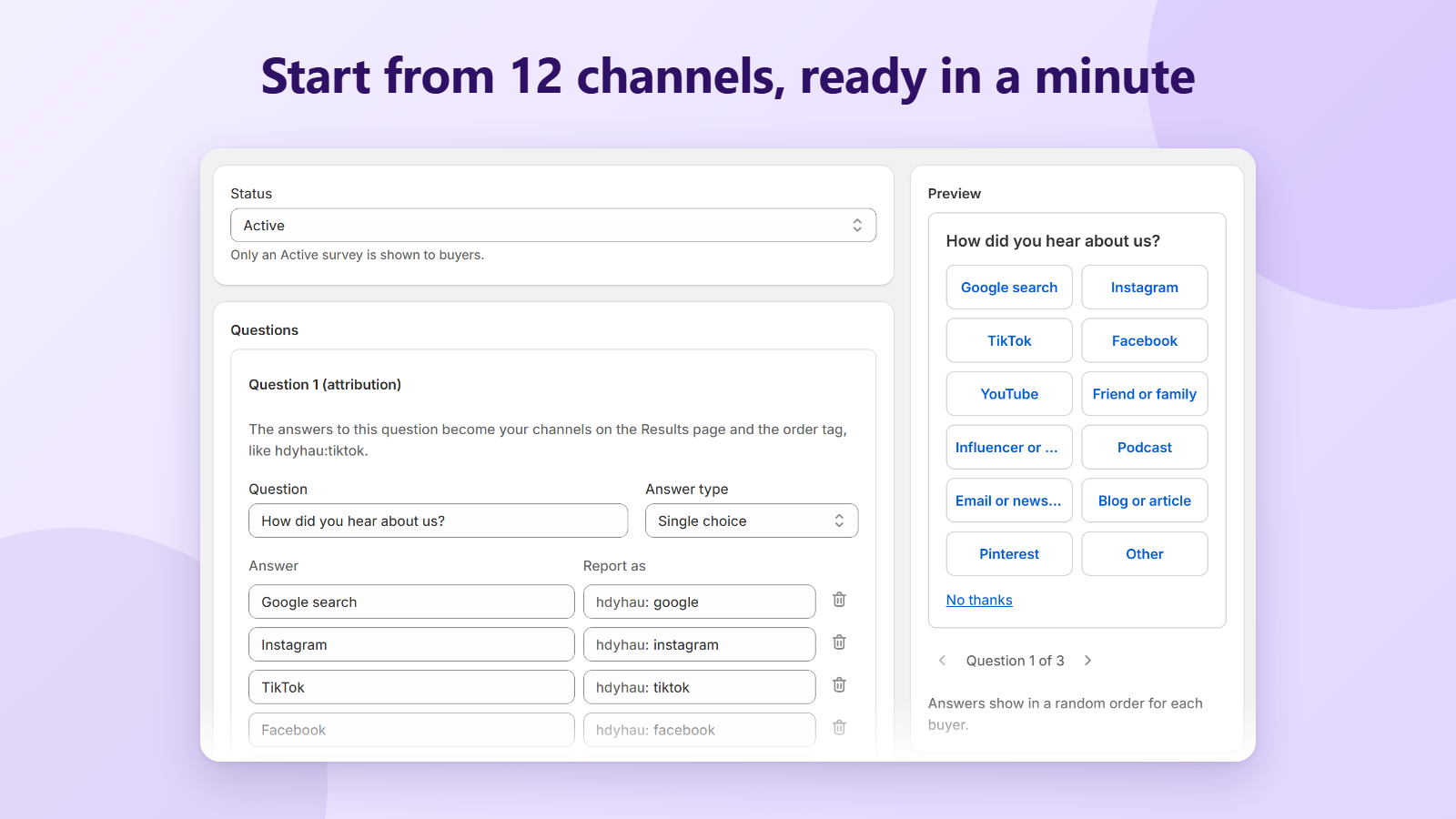
- In HearAbout, click Set up survey (or open Survey in the app menu). The survey starts with “How did you hear about us?” and 12 channels.
- Edit the question text if you like. Rename, remove or add answers (up to 15), and drag to reorder.
- Keep “Show answers in random order” on to reduce position bias. An “Other” answer always stays last and lets buyers type their own.
- Optional: click Add question to add a single choice, multiple choice, text, NPS (0 to 10) or rating (1 to 5) question. A survey can have up to 5 questions: short surveys get more answers.
- Change the thank-you message shown after the last answer.
- Set Status to Active and click Save in the save bar. A survey in Draft or Paused is not shown to buyers.
Report keys and order tags
- Every answer of the first choice question has a report key, for example tiktok or friend-or-family. It is used in the Results page and as the order tag: an order answered with TikTok gets the tag hdyhau:tiktok.
- If you rename an answer, check its report key: keep it the same to keep your reports and tags consistent over time.
- The answers are also saved on the order in a metafield, and you can filter orders by the tag in Shopify admin under Orders.
3. Add the block to your Thank you page
- In HearAbout, open the home page and click Set up next to “Add it to your Thank you page”. The Shopify checkout editor opens on the Thank you page.
- If it doesn't open on the Thank you page, use the page picker at the top and choose Thank you.
- In the left sidebar, click Add app block and choose HearAbout survey.
- Drag the block where you want it. Directly under the order confirmation works well.
- Click Save at the top right of the editor. The block is not shown until you save.
- Go back to HearAbout and click Check status. The step is marked done once the block is placed.
Add the block manually (if the button doesn't work)
- In your Shopify admin, go to Settings > Checkout.
- Next to your checkout profile, click Customize.
- At the top center, open the page picker and choose Thank you.
- Click Add app block, choose HearAbout survey and click Save.
Also show it on the Order status page (optional)
- Some buyers close the Thank you page without answering. Add the same HearAbout survey block to the Order status page in the checkout editor (choose Order status in the page picker) so they can answer later.
- The survey doesn't show again on orders that already have an answer.
4. Test with an order
- Place a test order on your store, for example with Shopify's Bogus Gateway on a development store.
- On the Thank you page, tap an answer. The next question or your thank-you message appears. “No thanks” closes the survey.
- In Shopify admin, open the order. After a short delay it has the tag hdyhau:<channel>.
- In HearAbout, open Results. The response appears with its channel and the order's sales.
5. Read your results
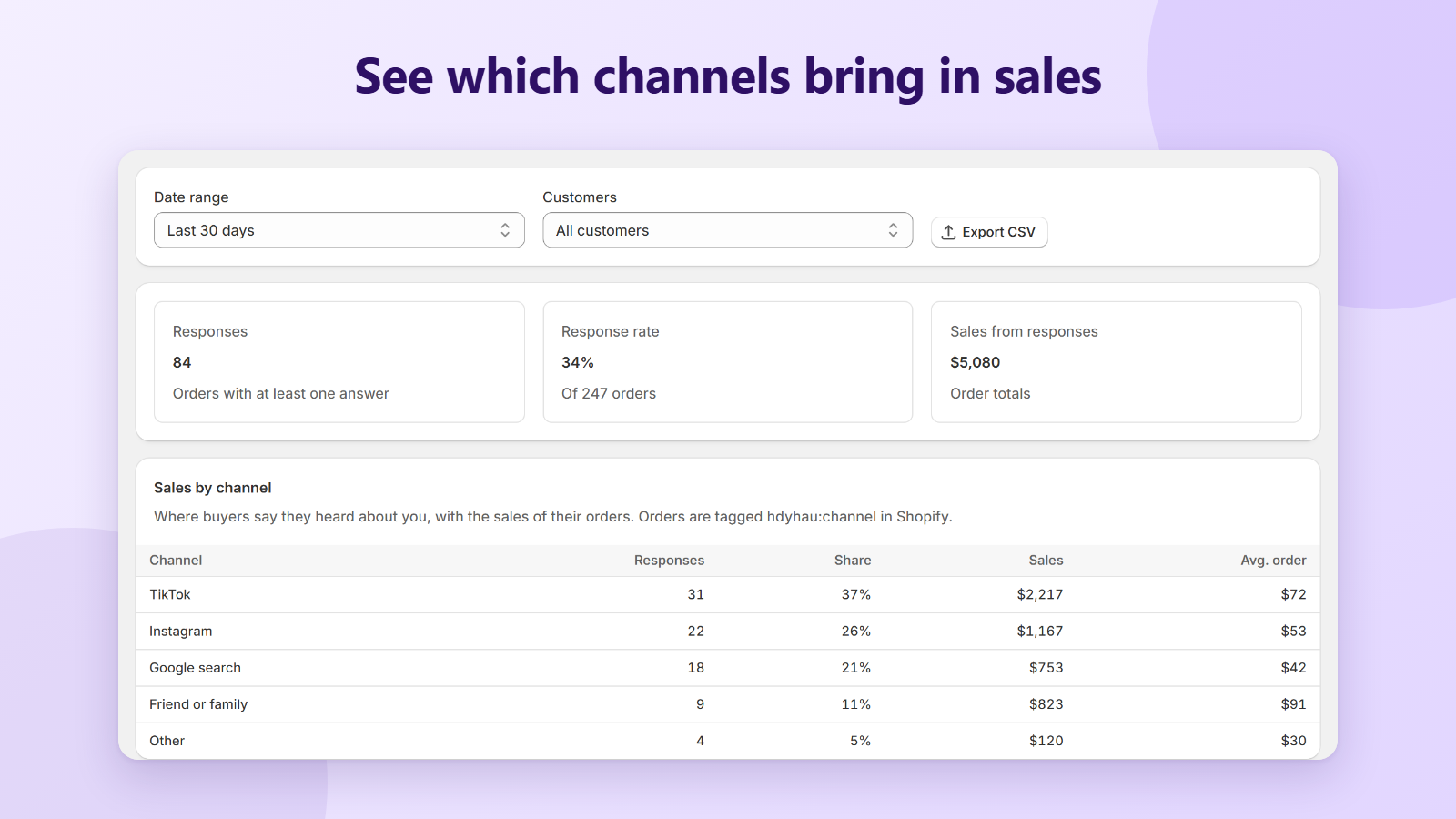
- Responses is the number of orders with at least one answer. Response rate is that number divided by all orders in the period. Sales from responses is the total of those orders.
- Sales by channel shows, for each channel, the responses, the share of answers and the sales of the orders. Use it to compare channels you can't track with pixels or UTM links.
- Choose a date range (last 7, 30 or 90 days, or all time) and show all, new or returning customers. Each other question has its own card, with NPS and ratings summarised.
- Click Export CSV to download the answers of the filtered results, with the order name, total and date.
Translate the survey
- In the survey editor, scroll to Translations and choose Add a language. Enter the question, answers and thank-you message for that language.
- Buyers checking out in that language see your translation. Empty fields use your default text, and the buttons (Submit, Skip) are already translated.
- The language code has to match the checkout language of your store.
Pause or change the survey
- To stop asking, set the survey Status to Paused and save. The block stays in your checkout but shows nothing.
- You can edit questions at any time. Answers already collected stay as they are, so avoid changing the meaning of a question that has many answers.
Troubleshooting
- The survey doesn't show: check that the survey Status is Active and saved, that the HearAbout survey block is on the Thank you page in the checkout editor and saved, and that you are looking at a new order. Orders that already have an answer don't show it again.
- No tag on the order: the tag appears a short moment after the answer. If it takes longer than a few minutes, open the order again, and email us if it is still missing.
- A banner says your survey isn't updating at checkout: open the survey and click Save again. If it keeps failing, email us.
- Still stuck? Email support@centubo.com with your store URL and a screenshot.
FAQ
Where does the survey show?
On the Thank you page right after checkout, and optionally on the Order status page, so buyers who skipped it can still answer. It is a checkout block, so it works on every Shopify plan.
Does HearAbout slow down my checkout?
No. Your survey is stored in Shopify and the block reads it from there, so the Thank you page doesn't wait for our servers. Our server is only contacted when a buyer submits an answer.
Will buyers be asked twice?
No. Once an order has an answer, the survey no longer shows on that order's Order status page. “No thanks” closes the survey for that visit.
Does it collect customer names, emails or addresses?
No. HearAbout stores each answer with the order ID, order name, total and currency. It doesn't read or store the customer's name, email or address. If a buyer types personal details into a text answer, those are saved as part of that answer.
How do I see which channel an order came from?
Open Orders in your Shopify admin and filter by tag, for example hdyhau:tiktok. The Results page in HearAbout shows the same data as responses, share and sales per channel.
Can I change the channels or ask something else?
Yes. Rename, remove or add answers, change their order, and add up to 4 more questions of any type. Each answer has a report key that becomes the order tag, so you decide what the tag looks like.
Do the answers replace my ad and analytics data?
They complement it. Pixels and UTM links miss word of mouth, podcasts, creators and dark social. A survey answer tells you what buyers remember, and HearAbout ties it to the order's sales.
What happens if I uninstall?
The survey stops showing at checkout right away. The tags and metafields already on your orders stay in your Shopify store. Your HearAbout data is deleted 48 hours after uninstall, as Shopify requires, so export your answers first if you want to keep them.
How do I get help?
Email support@centubo.com. We usually reply within one business day.